
If you prefer not having to ask each of your users to download the Cloudzet App on their own mobile devices, or if you want a simplified way to register a user, you can consider using the Cloudzet Store App for the iPad. Please follow these steps to get yourself set up:
1. Download and install the Cloudzet Store App from the App Store
Hardware requirement: iPad 2018 or newer model
Note: Cloudzet Store is not available on the iPhones).
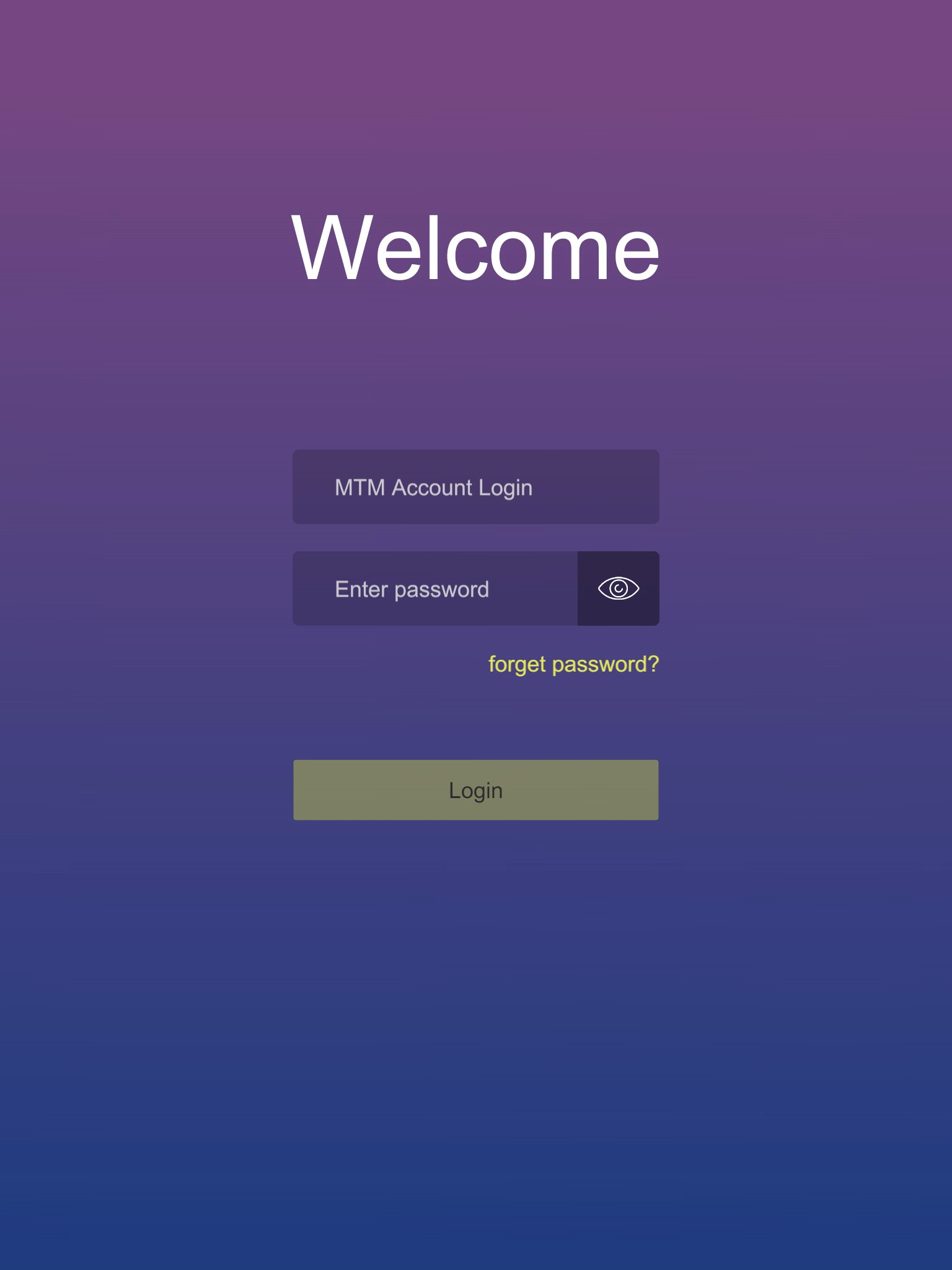
2. Log in to your Scanatic for Fashion account. This account does not necessarily need the "Body Service" license. (read more on how to Add new Scanatic™ for Fashion accounts and manage licenses)
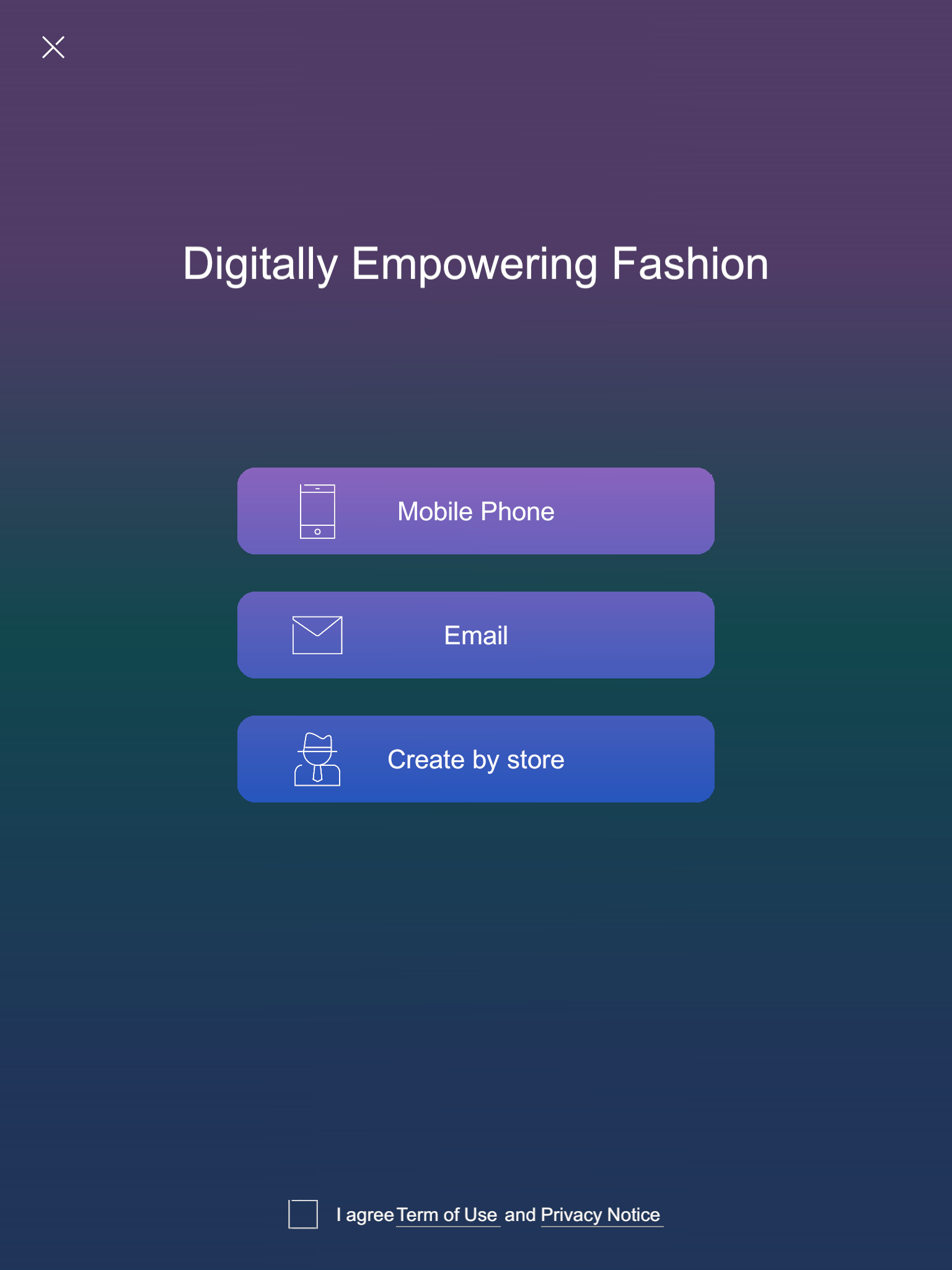
3. You will see 3 different options for scan account registration. Here are the differences
Mobile Phone: Use your mobile phone number to register. This will require you to provide a valid mobile phone number and will send a text with a validation number to proceed. User will need to:
- set up a password
- provide name
- select a gender
- enter a birth year
Note: this account allows the user to access their scan data if they download and log onto the Cloudzet App on their own iOS or Android devices.
E-mail: Use your e-mail to register. This will require you to provide an e-mail address but will not send a confirmation e-mail to proceed to the next step. User will need to:
- set up a password
- provide name
- select a gender
- enter a birth year
Note: this account allows the user to access their scan data if they download and log onto the Cloudzet App on their own iOS or Android devices.
Create by store: This is the express account sign-up. You can enter any unique identifier, be it an e-mail address, ID, customer number, Name to register. User only needs to:
- select a gender
- enter a birth year
Note: this account DOES NOT allows the user to access their scan data if they download and log onto the Cloudzet App on their own iOS or Android devices.
Select one of the 3 options and tick the "I agree to the Terms of Use and Privacy Notice" to proceed with the registration.
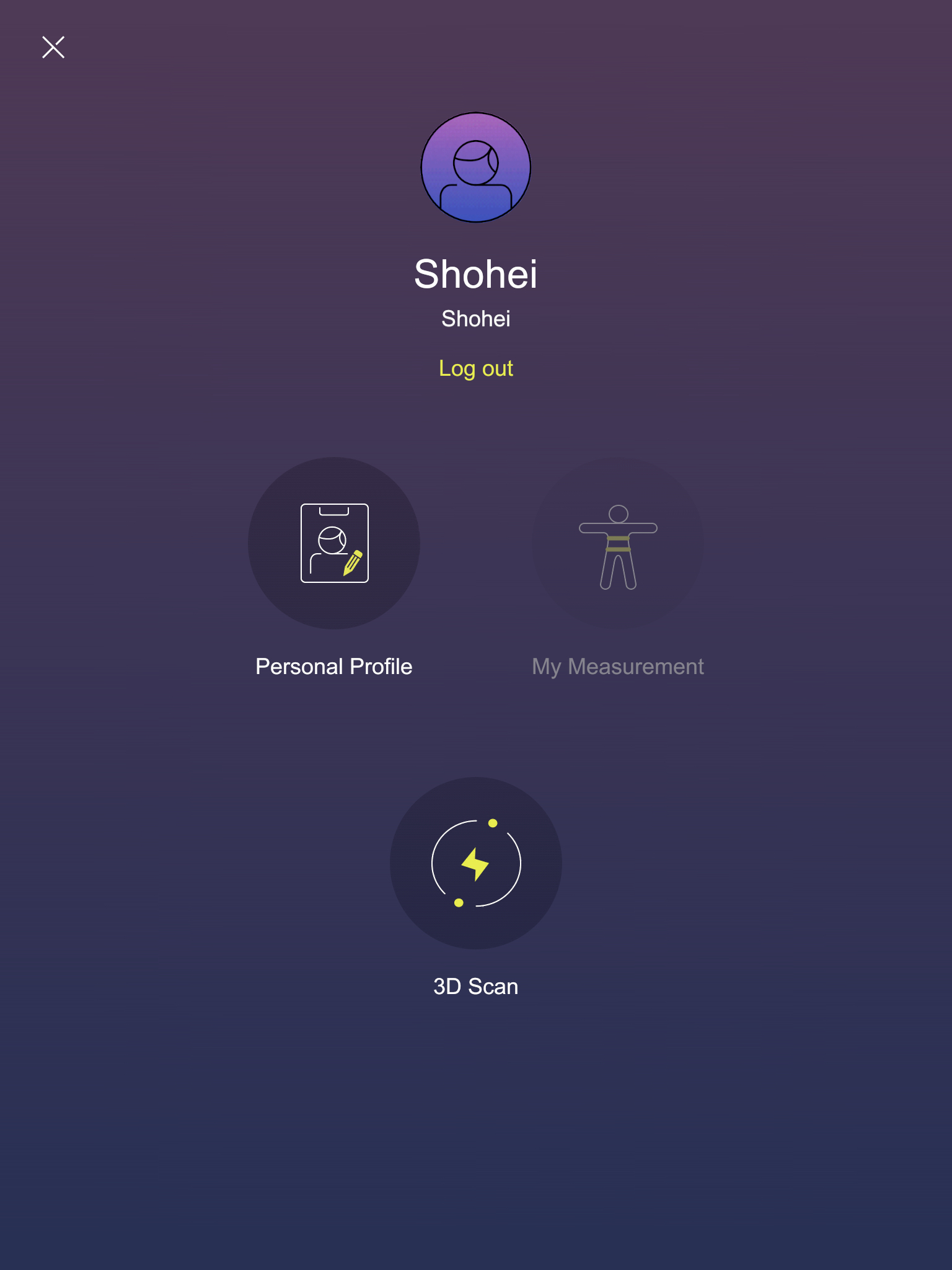
4. For first-timer, take the iPad inside the Scanatic™ 360 Body Scanner and place the iPad on the device rack and click 3D Scan button to begin scanning.
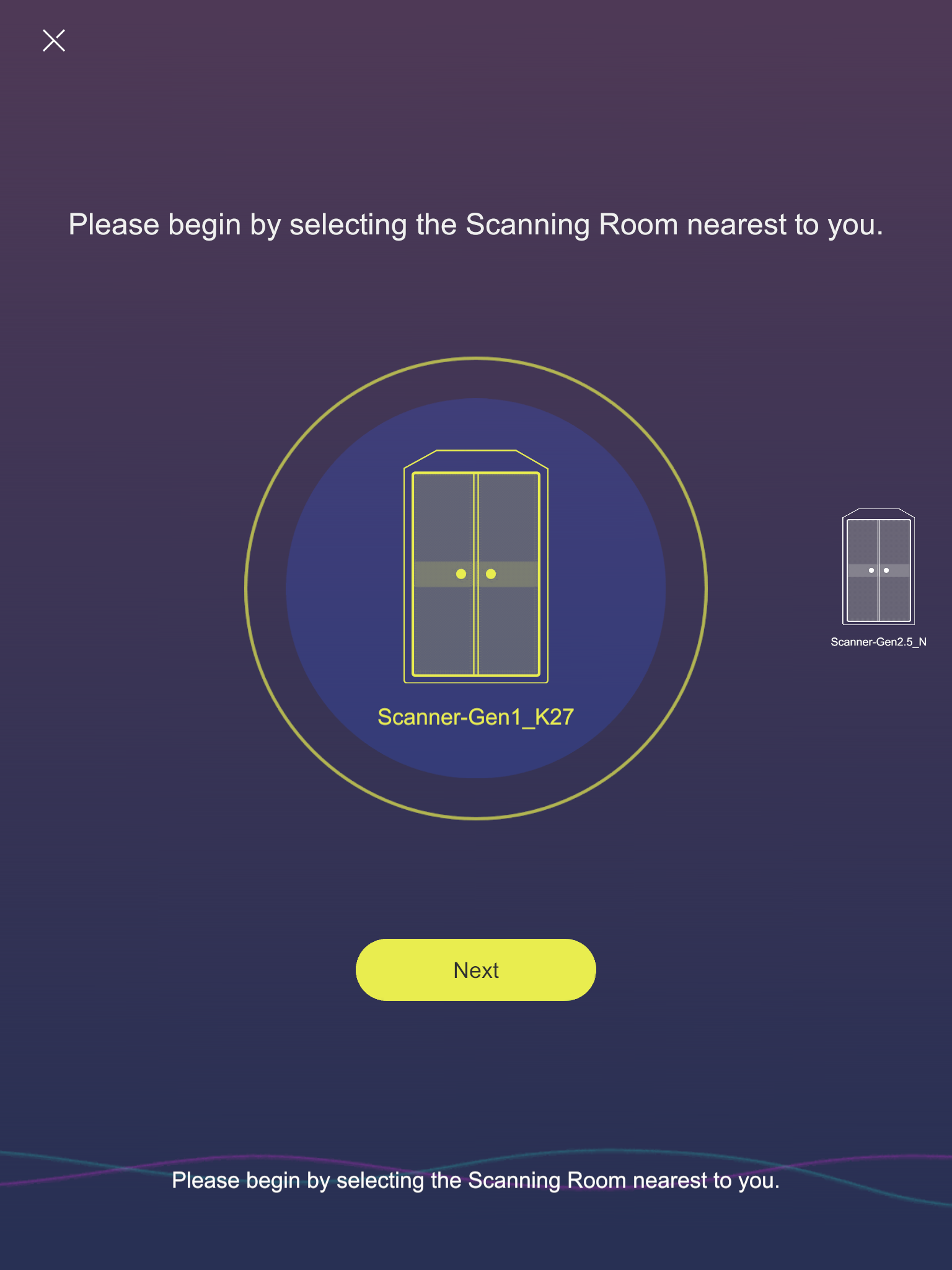
5. Select the Scanatic™ 360 Body Scanner detected by the Cloudzet Store App and follow the on-screen instructions to complete the scan.
6. Your avatar and 10 extracted measurements will be displayed shortly after the scan.
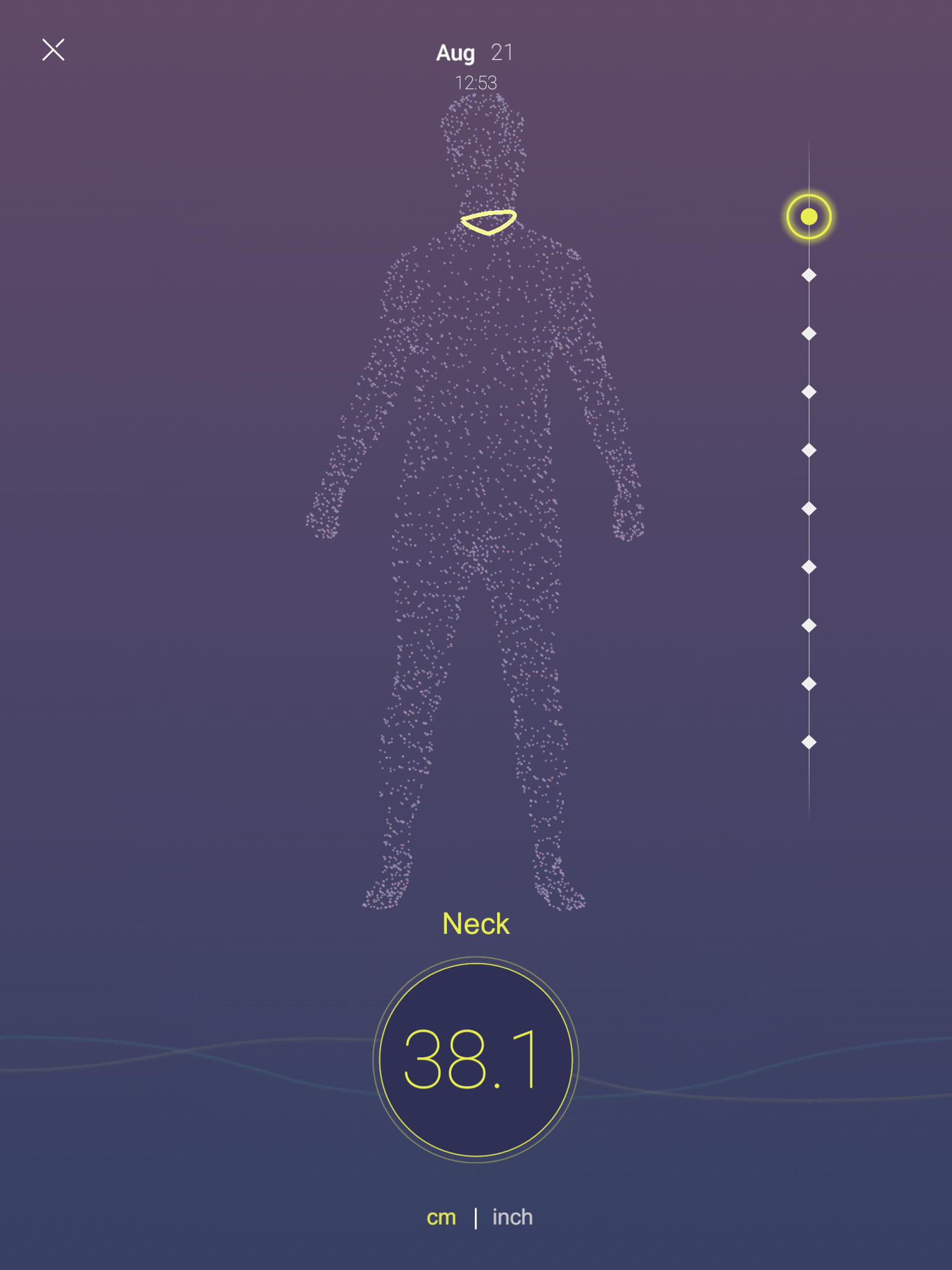
7. Close the 3D view by tapping the "X" mark on the upper left hand corner. This will take you back to the User Page. The same user can scan as many times as he/she likes. Be sure to sign out of this account or else the next person's scan will be stored in the wrong account.

Comments
0 comments
Please sign in to leave a comment.